Bullets — your ship can shoot
Stage 5 is where Galaxy Defender starts feeling like a real game. Press SPACE and a tiny yellow rectangle flies up the screen. To make it work, we'll meet one of Python's most powerful tools — the list.
🧠 Quick Recap (30 seconds)
Before we dive in — can you remember from Lesson 4 (Player)?
Q1. What is a pygame.Rect?
A rectangle stored as four numbers: x, y, width, height. Pygame uses Rects for every "thing" on screen — player, bullet, enemy. Move it by changing x or y.
Q2. How does the player actually move?
Each frame we ask pygame.key.get_pressed() which keys are held, then change player.x by a few pixels. Redraw, repeat. That's all "movement" really is.
Where we are on the rocket
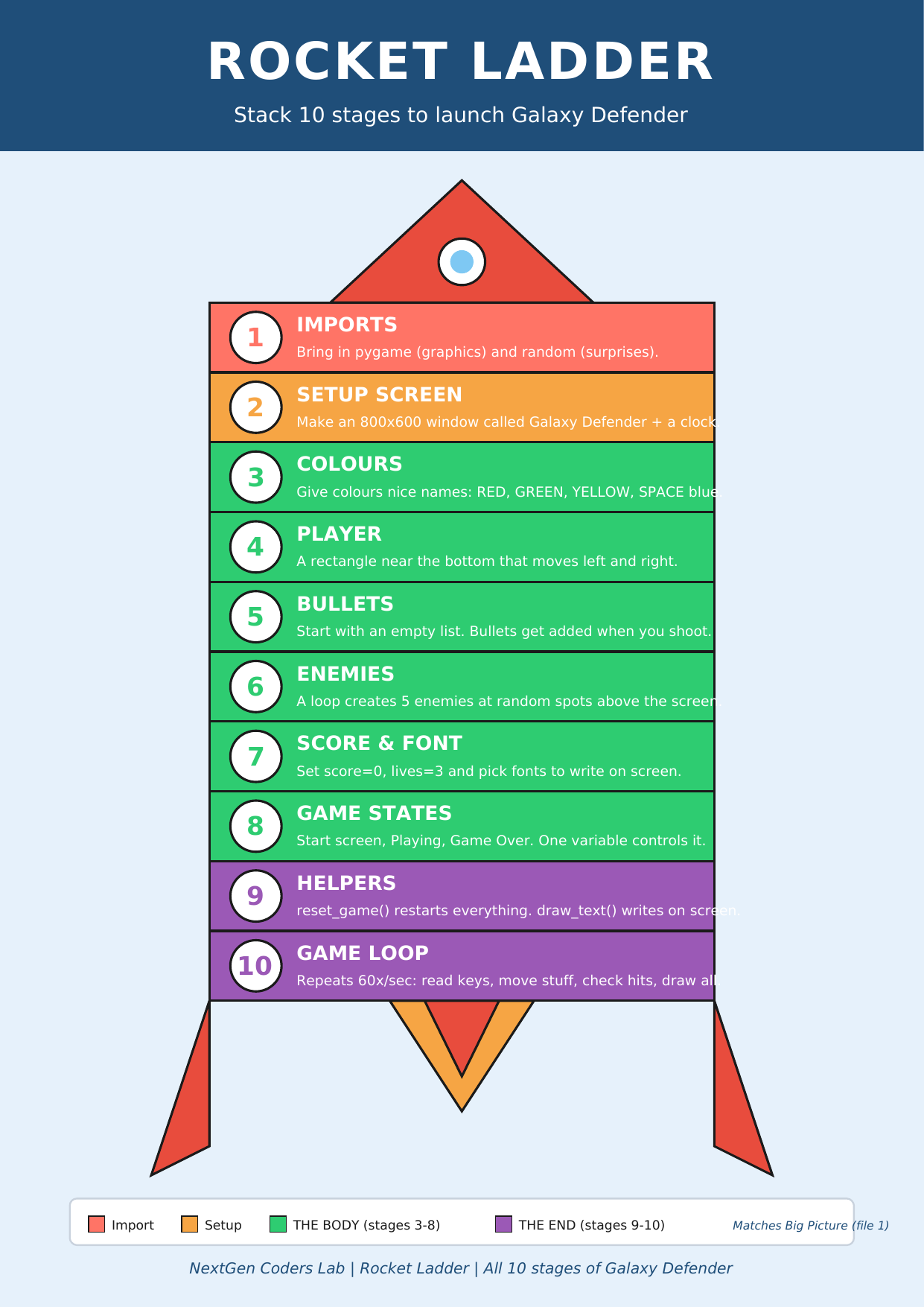 ▶
◀
▶
◀
You're on Stage 5 of 10.
The big new idea: lists
Up to now, each "thing" in our game has been one variable: one
player, one screen.
But you don't shoot just one bullet — you shoot lots of them. How do we keep
track of all of them at once?
With a list. A list is exactly what it sounds like: a single variable that holds many items in order. You can add items, remove items, and loop through all of them.
bullets = []        # start with an EMPTY list — no bullets yet
bullets.append(b)   # add a new bullet to the end of the list
for b in bullets:   # loop through every bullet
    b.y -= 10       # move each one up by 10 pixels
bullets.remove(b)   # take a bullet out of the list
🛒 A list is like a shopping basket — you start with an empty basket, you add things in, you can look at every item, and you can take things out.
One shot per press (KEYDOWN)
In Lesson 4 we used pygame.key.get_pressed()
because we wanted the player to keep moving as long as you hold
the arrow key.
Shooting is different. If we used the same trick for SPACE, a single press would fire 60 bullets a second (one per frame). We want one bullet per press — even if you hold SPACE down.
For "press only once" we use the KEYDOWN event inside the event loop:
for event in pygame.event.get():
    if event.type == pygame.QUIT:
        running = False
    if event.type == pygame.KEYDOWN and event.key == pygame.K_SPACE:
        bullet = pygame.Rect(player.x + 27, player.y, 6, 15)
        bullets.append(bullet)
💡 Rule of thumb: held actions → use key.get_pressed().
One-time actions (shoot, jump, fire) → use KEYDOWN.
Move them up. Remove them when they leave.
Every frame, we slide each bullet up by changing its y:
for b in bullets[:]:
    b.y -= bullet_speed
    if b.y < 0:           # left the top of the screen?
        bullets.remove(b)  # take it out so the list doesn't grow forever
Why bullets[:] instead of just bullets?
Because we're removing items while looping through.
Modifying a list while you iterate over it confuses Python.
bullets[:] makes a quick copy to loop over, while
we change the original. Tiny trick, big bug saver.
The code so far
# Stages 1–4 already in place...
import pygame
pygame.init()
WIDTH, HEIGHT = 800, 600
screen = pygame.display.set_mode((WIDTH, HEIGHT))
pygame.display.set_caption("Galaxy Defender")
clock = pygame.time.Clock()

YELLOW = (255, 215, 0)
SPACE  = (0, 0, 50)

player = pygame.Rect(370, 520, 60, 40)
player_speed = 5

# 🚀 Cartoon ship (we'll properly explain "def" in Lesson 9 — for
# now, just enjoy your green rectangle becoming a real spaceship.)
def draw_ship(s, x, y):
    pygame.draw.polygon(s, (0, 230, 100),
        [(x+30,y),(x+60,y+40),(x+40,y+30),(x+20,y+30),(x,y+40)])  # hull
    pygame.draw.circle (s, (100, 200, 255), (x+30, y+18), 6)       # cockpit
    pygame.draw.polygon(s, (255, 100, 0),
        [(x+25,y+30),(x+35,y+30),(x+30,y+42)])                     # flame

# Stage 5 — Bullets ✨
bullets = []                # empty list, ready to fill
bullet_speed = 10

running = True
while running:
    for event in pygame.event.get():
        if event.type == pygame.QUIT:
            running = False
        if event.type == pygame.KEYDOWN and event.key == pygame.K_SPACE:
            # spawn a new bullet ABOVE the centre of the player
            bullet = pygame.Rect(player.x + 27, player.y, 6, 15)
            bullets.append(bullet)

    keys = pygame.key.get_pressed()
    if keys[pygame.K_LEFT]  and player.x > 0:
        player.x -= player_speed
    if keys[pygame.K_RIGHT] and player.x < WIDTH - 60:
        player.x += player_speed

    # move every bullet up; remove ones that fly off the screen
    for b in bullets[:]:
        b.y -= bullet_speed
        if b.y < 0:
            bullets.remove(b)

    screen.fill(SPACE)
    draw_ship(screen, player.x, player.y)    # 🚀 cartoon ship
    for b in bullets:
        pygame.draw.rect(screen, YELLOW, b)
    pygame.display.flip()
    clock.tick(60)

pygame.quit()
Run it. Move with LEFT/RIGHT. Tap SPACE — a tiny yellow streak flies up. Tap SPACE again — another one. Hold SPACE — just one bullet per press, thanks to KEYDOWN. 🎯
🎮 Want to play with more code? Scroll down to the Lesson 5 Code Library (6 bullet games). Copy any program, paste it into the editor below, and press the green ▶ Run button.
Type the code into this in-browser editor and press Run
Type the code above into the editor, then click ▶ Run.
🏆 Mini-challenges
- Make bullets faster: change
bullet_speed = 10to25. - Make bullets bigger: change
pygame.Rect(player.x + 27, player.y, 6, 15)topygame.Rect(player.x + 20, player.y, 20, 30). - Change bullets to red: define
RED = (255, 0, 0)and use it where YELLOW is. - Print the number of bullets after every SPACE press:
print("Bullets in the air:", len(bullets)).
Handouts for this lesson
Print these, keep them open in another tab, or download them to your computer.
📚 Lesson 5 Code Library — 6 brand-new pygame mini-games all about bullets and lists: One Bullet, Press SPACE to Fire, Disappearing Bullets, Bullet Rain, Click to Shoot, Confetti Cannon.
📄 Lesson 5 Code Library (6 bullet games) 🎨 Sprite Bonus (visual polish) 📄 Lesson 4 Code Library 📄 Lesson 3 Code Library 📄 Lesson 2 Code Library 📄 Lesson 1 Code Library
🗺️ The big-picture handouts — keep these by your side for the whole course.
📄 Rocket Ladder 📄 Code Comic 📄 Pixel Cheat Sheet 📄 Code Recipe 🖼️ 6 Parts of a Turtle Program
🤖 Want to try your own idea? Ask an AI like Claude or ChatGPT something like "Write me a short pygame program where pressing SPACE fires a bullet upwards", then paste the code into the Trinket above and click Run.