The Player — your spaceship comes to life
Stage 4 is where your game finally moves. You'll build a little rectangle near the bottom of the screen — your spaceship — and steer it left and right with the arrow keys.
🧠 Quick Recap (30 seconds)
Before we dive in — can you remember from Lesson 3 (Colours)?
Q1. What colour does (255, 0, 0) make?
Pure red. Full red light, no green, no blue. Each number is 0–255: 0 means off, 255 means full brightness.
Q2. Why do we write RED = (255, 0, 0) instead of using the numbers everywhere?
So the code reads like a sentence. pygame.draw.rect(screen, RED, player) is instantly understandable — pygame.draw.rect(screen, (255, 0, 0), player) is not.
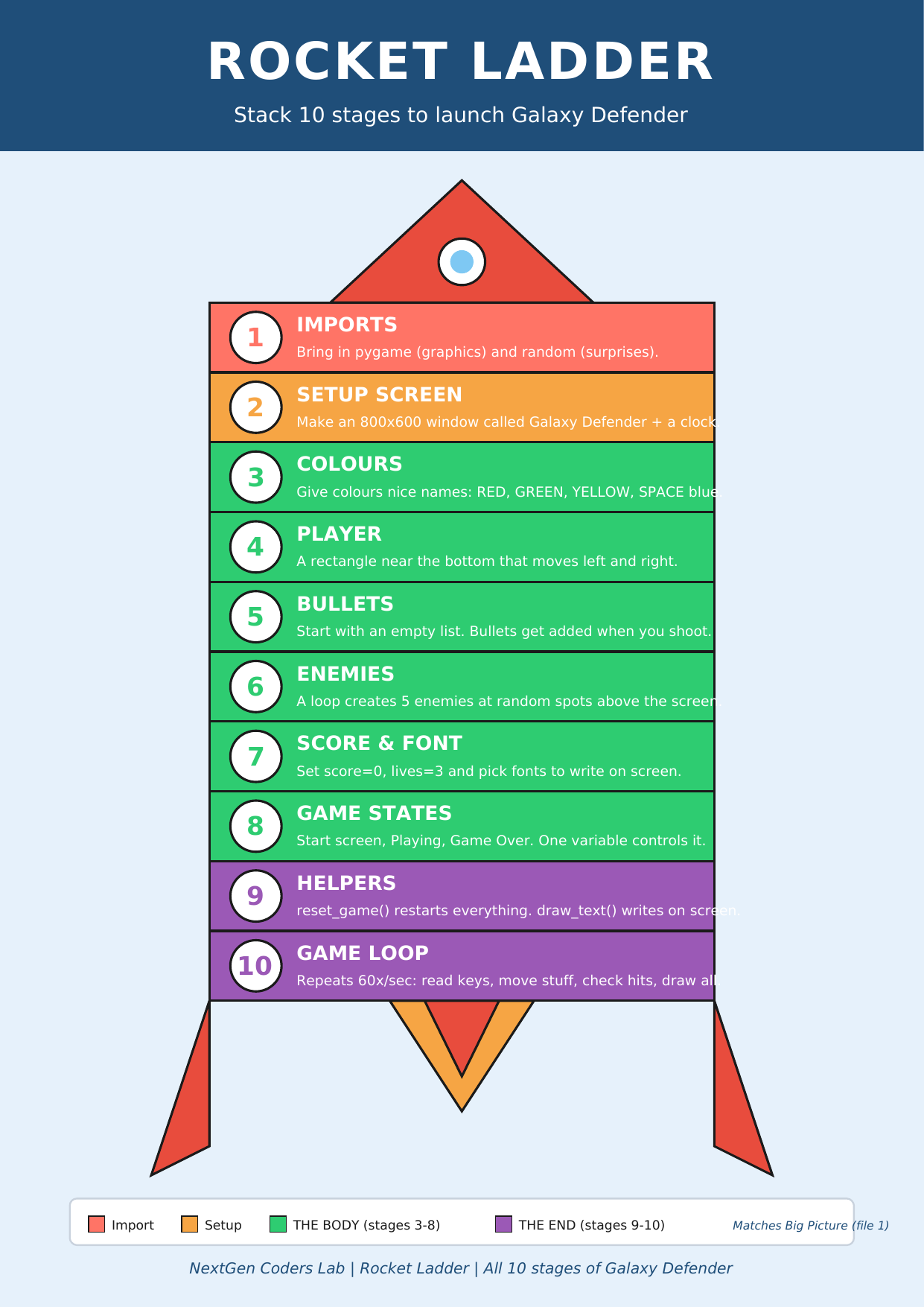
Where we are on the rocket
 ▶
◀
▶
◀
You're on Stage 4 of 10. Halfway up the rocket!
Meet the player
In pygame, a "thing" on the screen — your spaceship, an enemy, a bullet — is almost always a rectangle. Even when we draw a circle or an image on top, the position is tracked by a rectangle behind the scenes. So Stage 4 starts with the simplest thing in the world: a coloured rectangle.
We give the rectangle four numbers: x (left edge),
y (top edge), width, and height.
Pygame stores all four together in a thing called a Rect.
player = pygame.Rect(370, 520, 60, 40)
#                    │    │    │   └─ height (40 pixels tall)
#                    │    │    └───── width  (60 pixels wide)
#                    │    └────────── y      (top edge, 520 pixels down)
#                    └─────────────── x      (left edge, 370 pixels across)
Why 370 and 520? Our window is 800×600. We want the spaceship near the bottom and roughly in the middle, so its left edge starts at 370 (so it's centred) and its top edge starts at 520 (so it sits about 80 pixels from the bottom). Check the Pixel Cheat Sheet if those numbers feel confusing.
How does it actually move?
Animation in games is a magic trick: nothing really "moves." Each frame (60 times a second!) we change a number, then redraw the rectangle in its new place. Do that fast enough, and your eyes see smooth motion.
For the player, the trick is:
- Ask pygame: "is the LEFT arrow being held down right now?"
- If yes, do
player.x -= 5(move 5 pixels left). - Ask: "is the RIGHT arrow being held down?"
- If yes, do
player.x += 5(move 5 pixels right). - Redraw the player at its new x.
In pygame code, "ask if a key is held down" looks like this:
keys = pygame.key.get_pressed()
if keys[pygame.K_LEFT]:
    player.x -= 5
if keys[pygame.K_RIGHT]:
    player.x += 5
Stay on the screen!
Without any limits, you can keep pressing LEFT until the spaceship vanishes off the edge of the world. We don't want that. So we add a tiny check: only move left if there's room left, only move right if there's room right.
if keys[pygame.K_LEFT]  and player.x > 0:
    player.x -= 5
if keys[pygame.K_RIGHT] and player.x < WIDTH - 60:   # 60 = the player's width
    player.x += 5
Read it like a sentence: "if LEFT is held AND there's still room on the left, move left." That's it.
The code so far
# Stage 1 — Imports
import pygame

# Stage 2 — Setup the Screen
pygame.init()
WIDTH = 800
HEIGHT = 600
screen = pygame.display.set_mode((WIDTH, HEIGHT))
pygame.display.set_caption("Galaxy Defender")
clock = pygame.time.Clock()

# Stage 3 — Colours
BLACK  = (0, 0, 0)
WHITE  = (255, 255, 255)
GREEN  = (0, 255, 0)
SPACE  = (0, 0, 50)

# Stage 4 — Player ✨
player = pygame.Rect(370, 520, 60, 40)
player_speed = 5

# Game loop (preview of Stage 10)
running = True
while running:
    for event in pygame.event.get():
        if event.type == pygame.QUIT:
            running = False

    # read the keyboard
    keys = pygame.key.get_pressed()
    if keys[pygame.K_LEFT]  and player.x > 0:
        player.x -= player_speed
    if keys[pygame.K_RIGHT] and player.x < WIDTH - 60:
        player.x += player_speed

    # draw everything
    screen.fill(SPACE)
    pygame.draw.rect(screen, GREEN, player)
    pygame.display.flip()
    clock.tick(60)

pygame.quit()
Run it. Hold LEFT — the green rectangle slides left. Hold RIGHT — it slides right. Stop pressing — it stops. That's your spaceship. 🚀
🎮 Want to play with more code? Scroll down to the Lesson 4 Code Library (6 movement games). Copy any program, paste it into the editor below, and press the green ▶ Run button.
Type the code into this in-browser editor and press Run
Type the code above into the editor, then click ▶ Run.
🏆 Mini-challenges
- Make the player faster: change
player_speed = 5to15. - Make the player bigger: change
pygame.Rect(370, 520, 60, 40)topygame.Rect(370, 520, 120, 80). (Hint: also update the boundary check toWIDTH - 120.) - Move the player higher up: change the
yfrom 520 to 100. Where does it sit now? - Change the player's colour to
YELLOW(don't forget to define it in your colours section).
Handouts for this lesson
Print these, keep them open in another tab, or download them to your computer.
📚 Lesson 4 Code Library — 6 brand-new pygame mini-games about movement: The Player, Move Left/Right, Stay on Screen, Up/Down Player, Two Players, Auto-Bouncer.
📄 Lesson 4 Code Library (6 movement games) 📄 Lesson 3 Code Library 📄 Lesson 2 Code Library 📄 Lesson 1 Code Library
🗺️ The big-picture handouts — keep these by your side for the whole course.
📄 Rocket Ladder 📄 Code Comic 📄 Pixel Cheat Sheet 📄 Code Recipe 🖼️ 6 Parts of a Turtle Program
🤖 Want to try your own idea? Ask an AI like Claude or ChatGPT something like "Write me a short pygame program where I steer a smiley face with the arrow keys", then paste the code into the Trinket above and click Run.