Colours — give them friendly names
Computers think in numbers. We think in words. Stage 3 is where we teach the
computer that (255, 0, 0) is just our friend RED.
🧠 Quick Recap (30 seconds)
Before we dive in — can you remember from Lesson 2 (Setup Screen)?
Q1. What does pygame.init() do?
It turns pygame ON. Starts all the parts of pygame (graphics, sound, fonts) so they're ready to use. Always run this once near the top.
Q2. What is the Clock for?
clock.tick(60) makes the game run at 60 frames per second on any computer — smooth on fast laptops, not too slow on old ones.
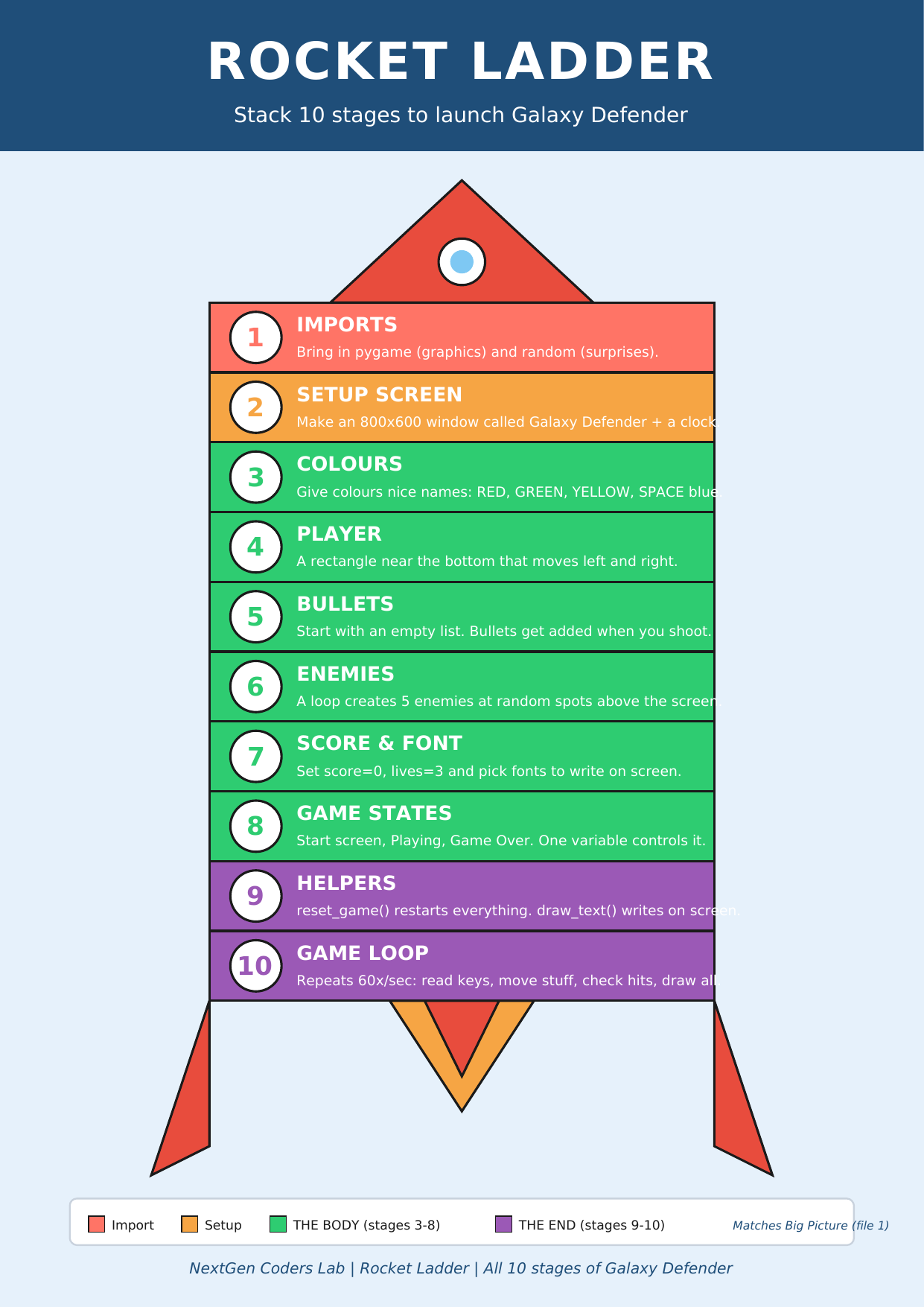
Where we are on the rocket
 ▶
◀
▶
◀
You're on Stage 3 of 10. Welcome to The Body of the rocket. 💪
What are colours, really?
A screen is made of tiny dots called pixels. Every pixel can glow in three lights at once: Red, Green, and Blue. Mix the three lights at different brightness levels and you get every colour you've ever seen on a screen.
In pygame, a colour is just three numbers: (red, green, blue).
Each number is from 0 (off) to 255 (full brightness).
So:
(0, 0, 0)— all lights off → black(255, 255, 255)— all lights on full → white(255, 0, 0)— only red → pure red(0, 255, 0)— only green → pure green(255, 215, 0)— red and a lot of green → gold/yellow(0, 0, 50)— a tiny bit of blue → deep space-blue
🎨 Try opening the Google colour picker and copy the "RGB" values it shows. You can use those numbers directly in pygame.
So why give them names?
Imagine writing a whole game and seeing this everywhere:
pygame.draw.rect(screen, (255, 215, 0), player)
pygame.draw.rect(screen, (255, 215, 0), bullet)
screen.fill((0, 0, 50))
What does (255, 215, 0) mean again? You'd forget in 10 minutes.
Instead, we store each colour in a variable with a clear name:
YELLOW = (255, 215, 0)
SPACE  = (0, 0, 50)

pygame.draw.rect(screen, YELLOW, player)
pygame.draw.rect(screen, YELLOW, bullet)
screen.fill(SPACE)
Same code, but readable. Anyone who looks at it (you, next month, or your friend) instantly knows what's going on. Programmers do this for almost everything — it's one of the most important habits you'll learn.
✨ Style tip: colours that never change are written in
ALL_CAPS. That's how other coders know "don't change
this — it's a constant."
The recipe
- After your imports and screen setup, add a section called
# COLOURS. - Pick a name (in ALL_CAPS) and a (R, G, B) value for each colour you'll use.
- Save each pair into a variable:
RED = (255, 0, 0). - Anywhere you'd type the numbers, type the name instead.
- Run the game — if a colour needs tweaking, change ONE place and it updates everywhere.
The code so far
# Stage 1 — Imports
import pygame

# Stage 2 — Setup the Screen
pygame.init()
WIDTH = 800
HEIGHT = 600
screen = pygame.display.set_mode((WIDTH, HEIGHT))
pygame.display.set_caption("Galaxy Defender")
clock = pygame.time.Clock()

# Stage 3 — Colours (R, G, B) ✨
BLACK  = (0, 0, 0)
WHITE  = (255, 255, 255)
RED    = (255, 0, 0)
GREEN  = (0, 255, 0)
YELLOW = (255, 215, 0)
SPACE  = (0, 0, 50)

# Tiny test loop — paint the screen SPACE blue and a YELLOW square
running = True
while running:
    for event in pygame.event.get():
        if event.type == pygame.QUIT:
            running = False
    screen.fill(SPACE)
    pygame.draw.rect(screen, YELLOW, (350, 250, 100, 100))
    pygame.display.flip()
    clock.tick(60)

pygame.quit()
Run this and you'll see a deep space-blue window with a glowing yellow square in the middle. Notice how the code reads like a sentence: "fill the screen SPACE, draw a YELLOW rectangle." That's the whole point of Stage 3. 🎉
🎮 Want to play with more code? Scroll down to the Lesson 3 Code Library (5 colour games). Copy any program, paste it into the editor below, and press the green ▶ Run button.
Type the code into this in-browser editor and press Run
Type the code above into the editor, then click ▶ Run.
🏆 Mini-challenges
- Add a new colour called
PINK = (255, 105, 180)and use it for the square. - Change
SPACEto(50, 0, 0)— what mood does the game have now? - Add
PURPLEand draw a second rectangle next to the first. - Why is writing
YELLOWnicer than writing(255, 215, 0)over and over? Can you say it in your own words?
Handouts for this lesson
Print these, keep them open in another tab, or download them to your computer.
📚 Lesson 3 Code Library — 5 brand-new pygame mini-games all about colour: Palette Test Card, Rainbow Stripes, Traffic Light, RGB Mixer, Random Sky.
📄 Lesson 3 Code Library (5 colour games) 📄 Lesson 2 Code Library 📄 Lesson 1 Code Library
🗺️ The big-picture handouts — keep these by your side for the whole course.
📄 Rocket Ladder 📄 Pixel Cheat Sheet 📄 Code Recipe 🖼️ 6 Parts of a Turtle Program
🤖 Want to try your own idea? Ask an AI like Claude or ChatGPT something like "Write me a short pygame program that draws a rainbow", then paste the code into the Trinket above and click Run.